Adding a guest yourself
Not every guest books online. This is how you add a guest in the Manager App who comes without a reservation or books by phone.
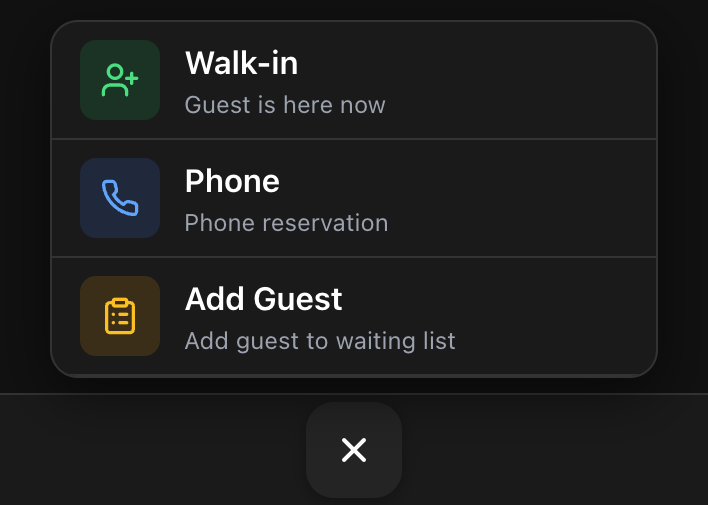
Not every guest books online. Some come without a reservation, others call. You add both in the Manager App yourself: with the plus in the bar at the bottom.
Adding a walk-in
- Tap the plus and choose Walk-in.
- Set the Party Size. With Child and Dog you record who is coming along.
- Under Table, choose a table. If the table is not decided yet, choose No table (assign later).
- Tap Create.
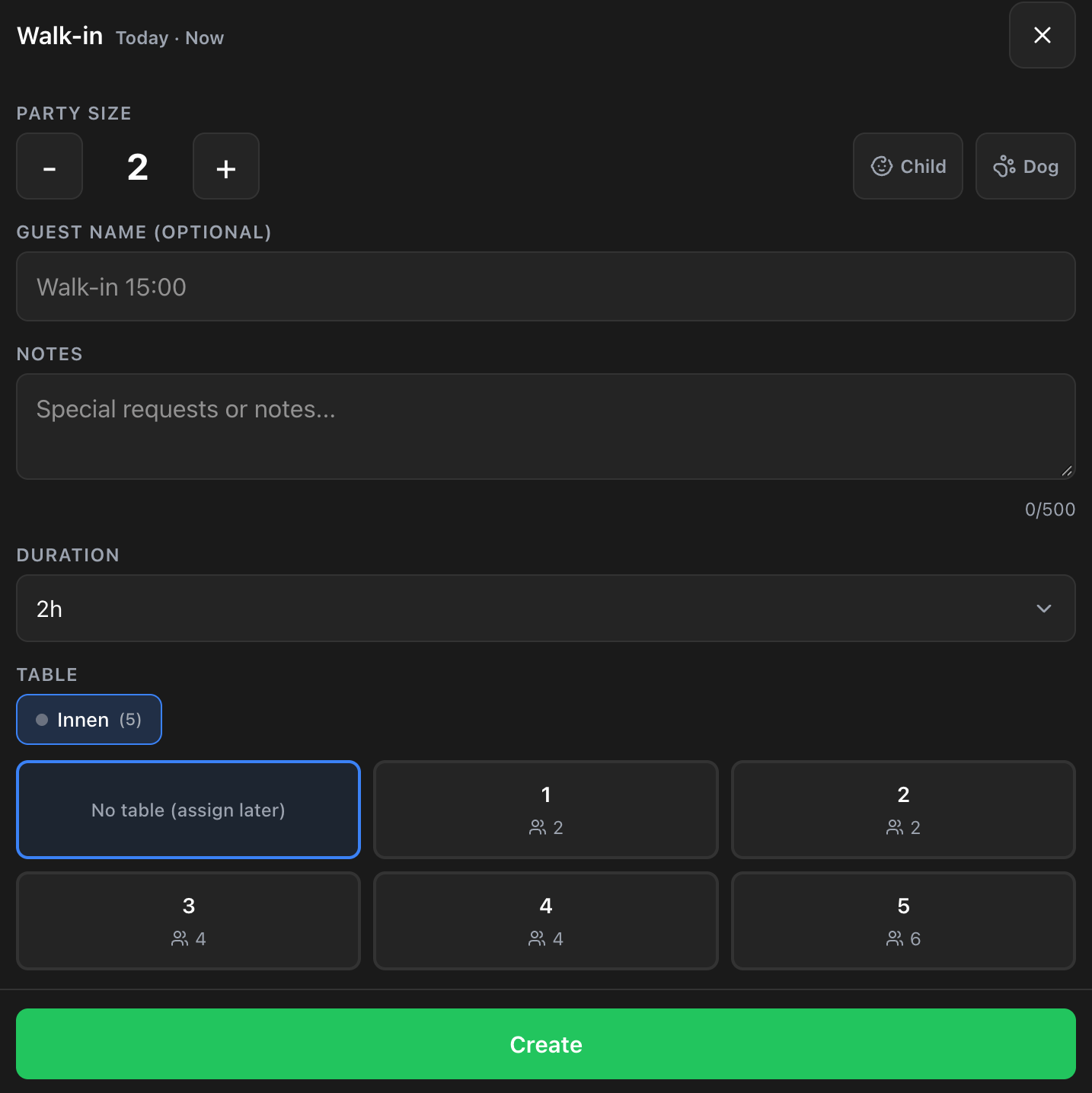
The entry is for today and now. If you chose a table, the guest counts as seated.
Further fields
Between Party Size and Table there are three fields that you only fill in when you need them:
- Guest Name (optional): Without a name the entry is called Walk-in with the time, for example “Walk-in 19:34”.
- Notes: for special requests.
- Duration: The app suggests a duration. You can change it.
Adding a reservation made by phone
- Tap the plus and choose Phone.
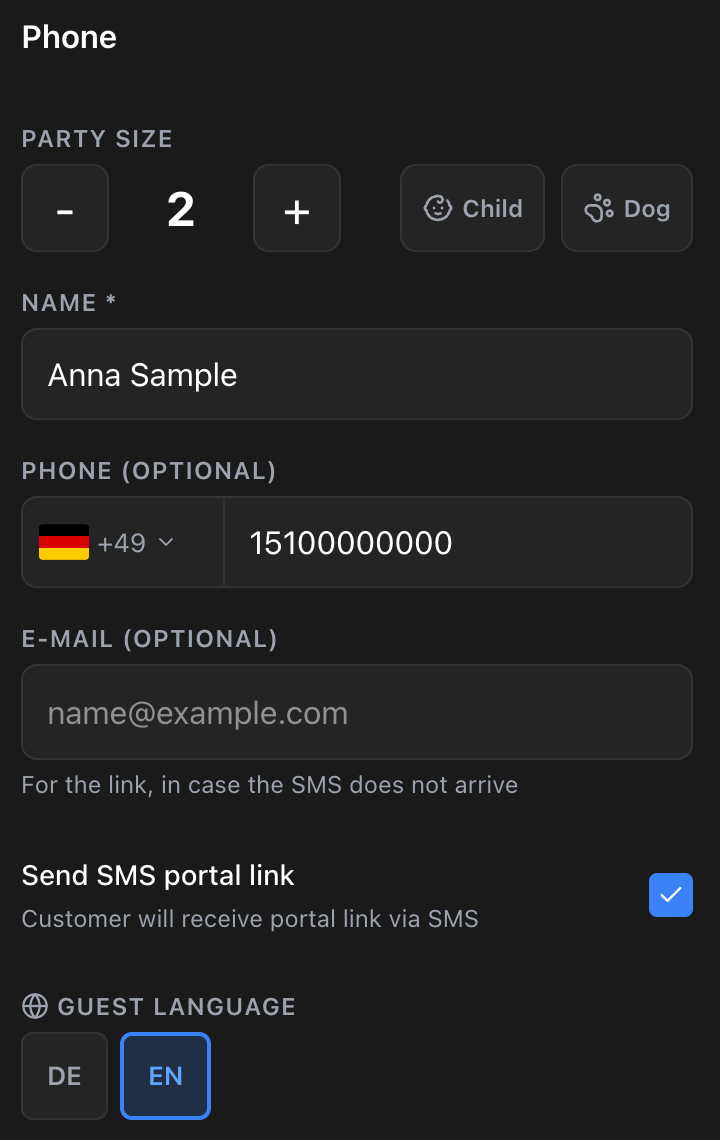
- Set the Party Size and enter the guest's name under Name. The name is mandatory.
- Enter the guest's mobile number if you have it.
- Choose Date and Time.
- Tap Create.
What the guest receives after the call
That depends on the box Send SMS portal link. With a mobile number it is ticked.
- Ticked: The guest receives a text message with a link. With it they confirm and complete their reservation. If they do not confirm it in time, it lapses.
- Not ticked or without a mobile number: The reservation is confirmed at once. The guest receives no message.
With E-mail (optional) you give an address to which the link goes if the text message does not arrive.
If your website has several languages, choose under Guest language the language in which the guest receives the text message.
A text message is only sent to mobile numbers. With a landline number the app shows that no text message is sent. The reservation is then confirmed at once.
Last checked: 25 November 2026