Setting up the tablet
The Manager App runs on the tablet at your venue. We set it up together with you. This is what activation looks like.
The Manager App is the tool for your team during service: reservations, guests at the venue and everything that comes up during the day. It runs on the tablet at your venue.
We set up your first tablet with you
We set up your first tablet together with you. We create the activation code for it. You add further tablets yourself.
What activation looks like
A new tablet shows the page Activate device when it is first opened.
- The six-digit activation code is entered there. If your tablet offers it, the code can also be read with the camera using Scan QR.
- Activate connects the tablet to your venue.
- The tablet then shows the names of your team. Each person signs in with their personal PIN.
At the top right of the page you set the language.
An activation code is valid only once and only for a short time. If it has expired or has already been used, the page says so. A new code is then needed.
Adding a further tablet
A Manager or Owner creates the code for a further tablet in the app:
- On a tablet that is already set up, open Settings and then Devices.
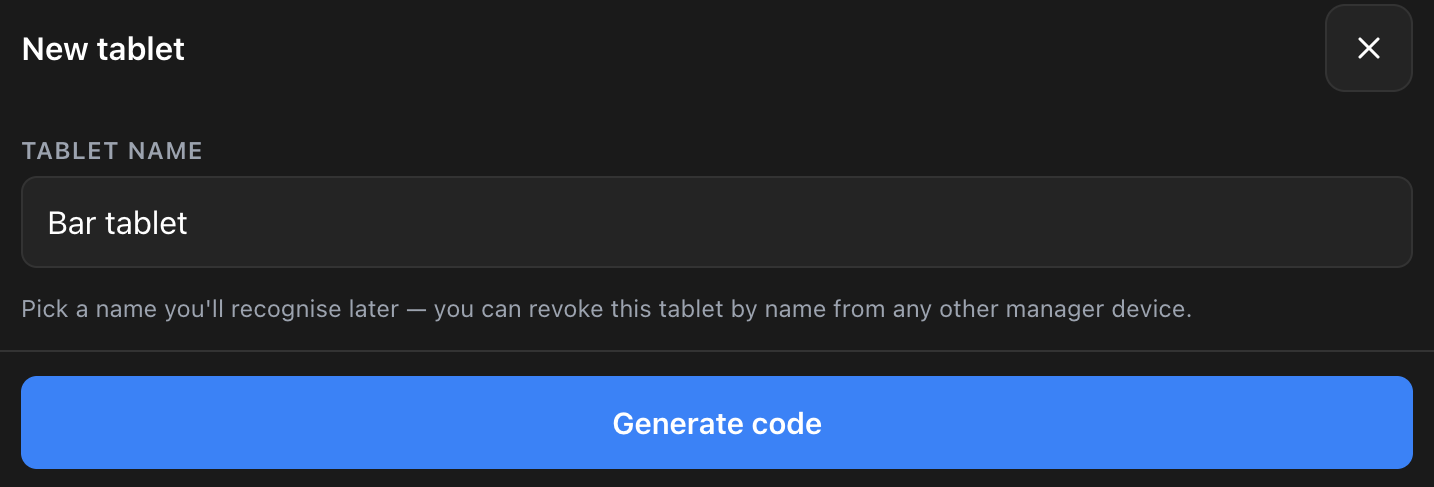
- Tap the plus. Under Tablet name, enter a name by which you will recognise the device later, for example “Bar tablet”.
- Tap Generate code. The app shows the six-digit code, a QR code and the time at which the code expires.
- On the new tablet, open the address of your website in the browser, with /manage at the end. The page Activate device appears.
- Enter the code there or scan the QR code, and tap Activate.
A tablet has been lost
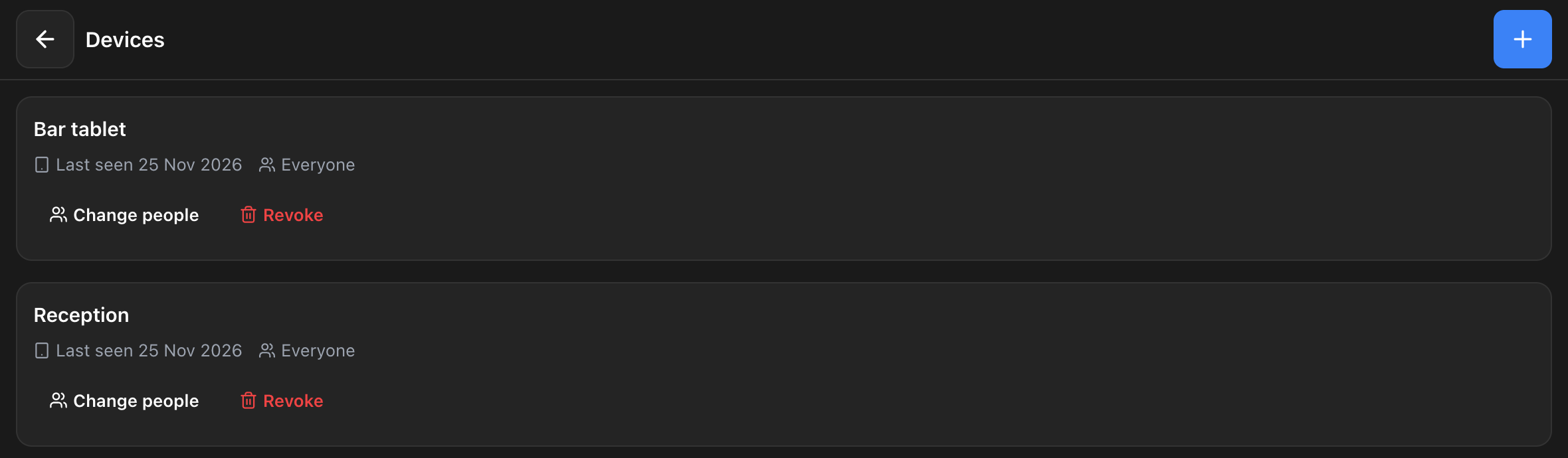
A Manager or Owner blocks the device from another tablet: under Devices with Revoke. Before that, the app asks for the PIN again. The lost tablet then shows the page Activate device again and no longer has access to your reservations.
If you have no other tablet at hand, please tell us at once. We block the device for you.
How to reach us
By e-mail at hello@stordia.com or by phone on +49 30 235929819, Mon–Fri 9:00–17:00 and Sat 10:00–15:00 (German time).
You can read how your team signs in in the article Signing in with your PIN.
Last checked: 25 November 2026